How to Make AI Christmas Cards With Your Own Photos

Contents
From an ordinary family portrait to a personalized Christmas card. Created with ChatGPT Images in November 2026 using an AI-generated sample family photo.
Quick Answer
- Upload one clear photo to ChatGPT or Gemini.
- Turn it into a Christmas portrait with a prompt that keeps every face, pose, and camera angle the same.
- Add your greeting in a second prompt, then check the faces and spelling and download the card.
The prompts for each step are below, along with versions for couples, selfies, and pets.
I wanted to turn an ordinary family photo into a Christmas card without making everyone look like completely different people.
So I tried creating a festive family portrait in ChatGPT. Adding snow, Christmas trees, and cozy winter outfits was easy. Keeping all four faces recognizable took more care.
The good news? You only need one photo to get started.
In this guide, I'll show you how to make AI Christmas cards with ChatGPT or Gemini, share the prompts you can copy, and explain how to turn your finished design into a digital or printed Christmas card.
How to use these prompts
- Choose the prompt that matches your photo.
- Upload the photos in the order listed. Nothing needs editing.
- Copy the prompt and paste it into ChatGPT, Gemini, or Nano Banana.
For a quick start, copy these first:
| Prompt | Best for |
|---|---|
| AI Christmas Portrait Prompt | A family photo |
| AI Christmas Card Design Prompt | Adding the greeting |
| Single Selfie Christmas Card Prompt | A solo portrait |
| Pet Christmas Card Prompt | A pet photo |
If you want more ready-to-use portrait ideas beyond holiday cards, browse these photoshoot prompts or our birthday photoshoot ideas.
What You Need to Make an AI Christmas Card
You don't need a professional photoshoot, expensive software, or design skills. You only need three things:
- One clear photo. A family portrait, couple photo, selfie, or even a picture of your pet.
- An AI image tool. ChatGPT or Google Gemini can create images and make changes to uploaded photos.
- A Christmas theme. Think snowy trees, warm fairy lights, cozy sweaters, or a classic holiday portrait.
This guide sticks to ChatGPT and Gemini because both can edit an uploaded photo in plain language, both have free access options, and most people already have one of them. Usage limits apply, so you may need to try again later if you reach your limit.
Choose the Right Photo
Start with a photo where everyone's face is clearly visible.
Natural lighting works best. Avoid heavy filters, motion blur, or pictures where someone is looking away from the camera.
For family photos, choose one where people are close together but their faces don't overlap.
You don't need Christmas decorations in your original picture.
For this example, I started with a simple outdoor family portrait. The family was standing together in a garden, wearing everyday clothes. The starting image was AI-generated for this demonstration.

A simple photo like this gives AI room to change the setting while keeping the people in familiar positions.
If you want a different holiday setting, explore these Christmas photo ideas for more festive scenes and inspiration.
How to Make AI Christmas Cards in 3 Steps
Let's turn your photo into a Christmas card.
I'll use ChatGPT for this walkthrough, but you can follow a similar process with Gemini.
Step 1: Upload Your Photo
Open ChatGPT and start a new conversation.
Click the attachment button and upload your family photo. You can also drag the image directly into the chat.
For your first attempt, use just one photo. This gives AI a clear reference for the people, their faces, and their positions.
Step 2: Create Your Christmas Portrait
Now describe the Christmas scene you want.
For this example, we're changing an ordinary family portrait into a cozy winter photograph. You can copy this prompt without changing anything.
AI Christmas Portrait Prompt
The last instruction matters. Create the portrait first, then add your Christmas greeting. This makes it easier to check everyone's face before adding the card design.

Take a close look at the result.
Does everyone still look like themselves? Are their expressions natural? Have any faces changed?
If you're happy with the portrait, move to the final step.
Step 3: Add Your Christmas Greeting
Now it's time to turn the portrait into a real Christmas card.
For this example, I chose a minimalist design inspired by classic family holiday cards. Think cream-colored borders, elegant typography, and a beautiful photograph as the main focus.
Use this follow-up prompt. Before you paste it, replace "The Williams Family" and "2026" with your own family name and year.
AI Christmas Card Design Prompt
Once the image is ready, check the spelling, text placement, and faces. If anything looks wrong, ask AI to fix that specific part instead of generating a completely new card.
Download the finished image when you're happy with it.

And that's it! You've turned one photo into a personalized Christmas card.
Prefer a landscape card for sharing on social media? Ask for a horizontal layout with the greeting beside the family instead of below it.

Using Gemini Instead of ChatGPT
The same three steps work in Gemini. Attach your photo in a new chat, paste the portrait prompt, and keep working in that chat when you add the greeting, so Gemini still has your original photo as a reference.
If a face changes, ask Gemini to fix only that face and keep everything else, just as you would in ChatGPT. Before printing, also check whether the image carries a visible watermark.
Keeping Faces Recognizable in AI Christmas Cards
The biggest challenge with AI family photos is keeping everyone looking like themselves.
You might get a beautiful Christmas background, but your daughter suddenly has a different smile. Or your partner looks like a completely different person.
This can happen when AI recreates too much of the original picture. Here are a few ways to improve your results.
Tell AI What Must Stay the Same
A simple prompt like "Make this photo look Christmassy" gives AI too much freedom. Instead, tell it exactly what to preserve.
Face Preservation Prompt
Clear instructions give AI a better idea of which details matter most. They won't guarantee an exact match, but they can help reduce unwanted changes.
Keep the Original Poses
Changing someone's pose can make their face harder to preserve.
For example, imagine uploading a family photo where everyone faces the camera. If you then ask AI to show the same family running through a snowy forest, the model must recreate their faces from new angles. That gives it more opportunities to change their appearance.
For your first Christmas card, keep the original pose and camera angle. Change the background and clothing instead.
Fix One Face at a Time
Family photos can be more difficult than individual portraits because AI needs to keep several people consistent at once.
If one person's face changes, don't immediately start over. Upload the original photo again if needed, then give AI a more specific instruction.
Single Face Fix Prompt
Check the result carefully. If AI continues to change the face, try returning to the original photo and requesting fewer changes.
Check Every Face Before Downloading
Don't judge the card only by how pretty it looks.
Zoom in and compare the original and Christmas versions. Pay attention to the eyes, smiles, face shapes, and ages of every family member.
Also check for extra fingers, strange hands, missing accessories, and other small mistakes.

A good Christmas card should feel personal. The holiday decorations make it festive. The familiar faces make it yours.
AI Christmas Card Ideas: 4 Styles to Try
A photorealistic card is only one option. The same photo can become a watercolor, vintage, or cartoon card, and a pet photo works too.

Upload your photo and copy the style you like. Each prompt adds the greeting in the same step; change "Merry Christmas" to your own wording.
Watercolor Christmas Card Prompt
Vintage Christmas Card Prompt
Cartoon Christmas Card Prompt
Pet Christmas Card Prompt
The prompts above were written to match these sample cards; your results will vary with your photo.
Prompts for Couples, Selfies, and Pets
Not making a family card? Upload your photo and use the version that fits. Then add your greeting with the card design prompt from Step 3.
Couple Christmas Card Prompt
Single Selfie Christmas Card Prompt
Pet and Owner Christmas Card Prompt
Pet-Only Christmas Card Prompt
Christmas Card Greeting Ideas
Not sure what to write? Swap any of these into the card design prompt in place of "Merry Christmas".
- Merry Christmas
- Merry Christmas and Happy New Year
- Happy Holidays
- Season's Greetings
- Peace, Love, and Joy
- Warmest Wishes This Christmas
- Joy to the World
- Wishing You a Cozy Christmas
- Merry and Bright
- Our First Christmas Together (for couples)
For the signature line, keep it short so it stays readable on a small card:
- The Williams Family
- Love, Sarah, Tom, Emma, and Jack
- With love from the Williams Family, 2026
- Emma and Jack, plus Max the dog
Always type the exact wording in quotation marks in your prompt, then zoom in to check every letter before you download.
Printing vs Digital AI Christmas Cards
Once you've created your card, you can send it digitally or print a physical copy.
Both options work well. The best choice depends on how you want to share your holiday greetings.
Digital Christmas Cards: Free and Easy to Share
Digital cards are perfect when you want to send something personal without waiting for printing or delivery. You can share your finished design through:
- WhatsApp or Messenger
- Instagram Stories
- Family group chats
If you use a free AI image generation option within its usage limits, creating and sharing a digital card can cost nothing.
For most digital cards, PNG or JPG works well. Before sending it, open the image on your phone to make sure the text is easy to read.
You can also create different greetings for different people. For example, send "Merry Christmas" to family members and "Happy Holidays" to friends or coworkers.
Printed Christmas Cards: A Personal Keepsake
If you want something your family can display on a shelf or keep for years, printing is a lovely option.
A common Christmas card size is 5×7 inches. It offers enough space for a family portrait, a holiday greeting, and a small personal message.
For a sharp 5×7-inch print at 300 DPI, aim for an image measuring at least 1500×2100 pixels. Images straight from an AI tool are often smaller than that, so if the print service warns about low resolution, upscale the image first.
Keep important details away from the edges so they don't get cut off during printing. Many print services trim a small border, called bleed, from every side, often about 1/8 inch, so keep faces and text well inside the edge and follow the safe area shown in the print preview.
You can order cards through photo printing services such as Walmart Photo, Shutterfly, or CVS Photo. Prices vary with the design, quantity, paper type, and shipping, so compare a few services before you order.
Before placing a large order, check the print preview and consider ordering a sample.


Make an Animated Christmas Card (Optional)
Want something more playful? You can also turn your finished Christmas card into an animated GIF.
ChatGPT Images 2.6 introduced GIF creation, allowing you to generate short animations from text prompts or image references. Availability may depend on your account and the feature rollout.
For a family Christmas card, I recommend keeping the animation simple. Imagine gentle snow falling outside, Christmas lights softly twinkling, and the family portrait staying completely still.
Animated Christmas Card Prompt
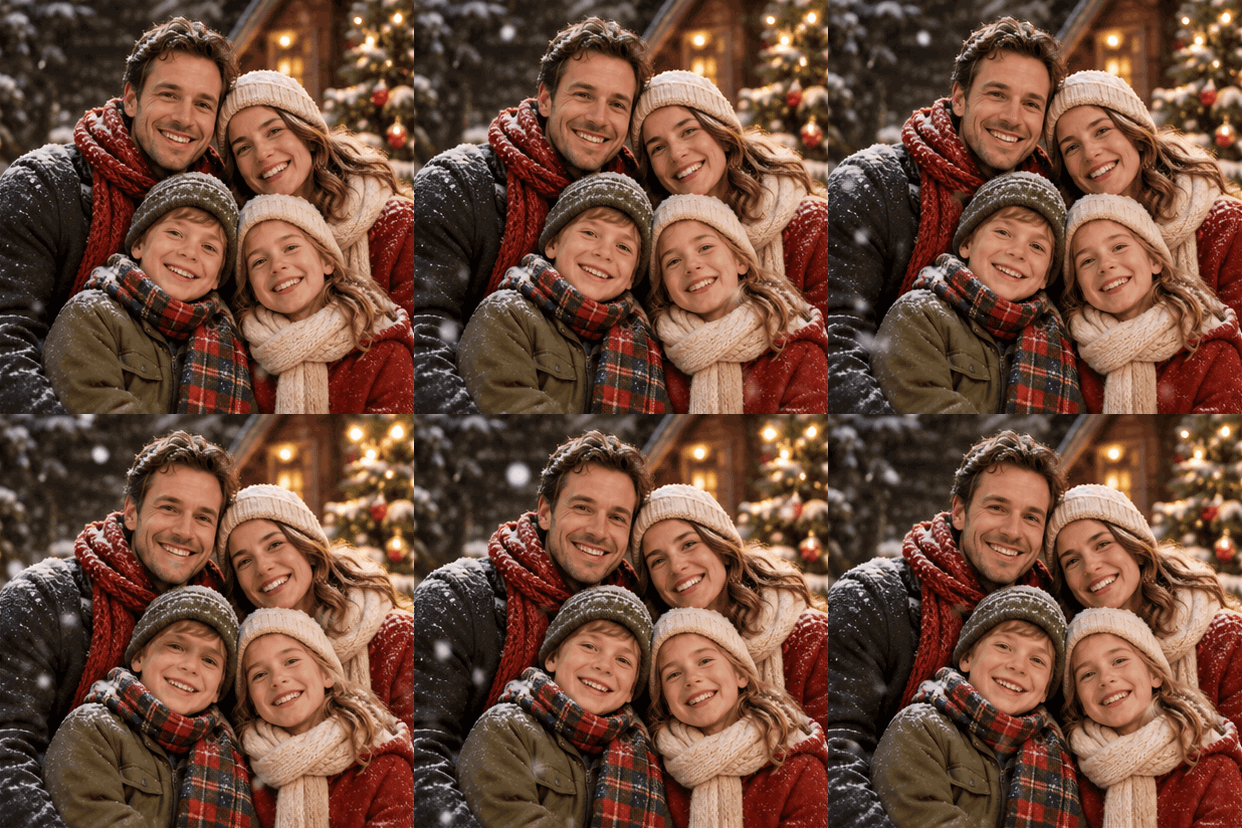
Review the animation before sharing it. If any faces or letters change between frames, try a simpler effect or animate a separate layer over the original still image.
For more image editing and animation ideas, explore our GPT Image collection.
AI Christmas Cards FAQ
Can I make AI Christmas cards for free?
Yes. ChatGPT and Gemini offer image generation features with free access options. You can upload a photo, describe a Christmas scene, and generate a digital card without paying for printing. Free accounts have usage limits, and some image features may require a paid plan.
Can ChatGPT turn my photo into a Christmas card?
Yes. ChatGPT supports image uploads and edits. Upload your photo and describe the Christmas setting you want. You can ask ChatGPT to change the background, add winter clothing, and create a personalized greeting. For family photos, include clear instructions to preserve everyone's face.
Can Gemini make Christmas cards from photos?
Yes. Gemini supports image generation and editing using uploaded photos. Upload your image and describe your preferred Christmas style. You can use the same Christmas portrait prompt from this guide, then ask Gemini to add a holiday greeting. Check the final image for changes to faces, text, or other important details.
How do I keep AI from changing my face?
Use a clear photo with good lighting. Tell AI to preserve your eyes, nose, mouth, face shape, hairstyle, and natural expression. Keep the original pose and camera angle. If the result looks different, upload the original photo again and request a more specific correction.
Can I make AI Christmas cards with a family photo?
Yes. You can create a Christmas card from a photo featuring several family members. Choose a picture where everyone's face is clearly visible. Ask AI to preserve the number of people, their positions, and their facial features. Check each face before downloading the card.
Can I print an AI Christmas card?
Yes. Download your completed card as a high-quality image and upload it to a photo printing service. A 5×7-inch design is a practical choice for a traditional Christmas card. Aim for at least 1500×2100 pixels at 300 DPI, and check the printer's recommended resolution and trimming requirements.
Can I make an animated Christmas card with AI?
Yes. Image tools with GIF generation features can turn a still Christmas card into a short animation. Try subtle movement such as falling snow or twinkling Christmas lights. Keep people's faces and the card text still to reduce unwanted changes.
Is it safe to upload family photos to AI tools?
Before uploading personal photos, review the tool's privacy settings and data policies, including whether your uploads may be used to improve its models. ChatGPT and Gemini both let you limit this in their settings. Be especially careful with photos of children: avoid images that show school names, house numbers, or other identifying details. Only upload pictures you have permission to use, and avoid including sensitive personal information in your prompts.
Ready to Make Your Own Christmas Card?
You don't need a perfect holiday photoshoot to create something special.
Start with a photo you love, add a Christmas setting, and keep the faces that make the picture meaningful.
Whether you print it for your family, send it to friends, or turn it into a festive GIF, one photo is enough to get started.


