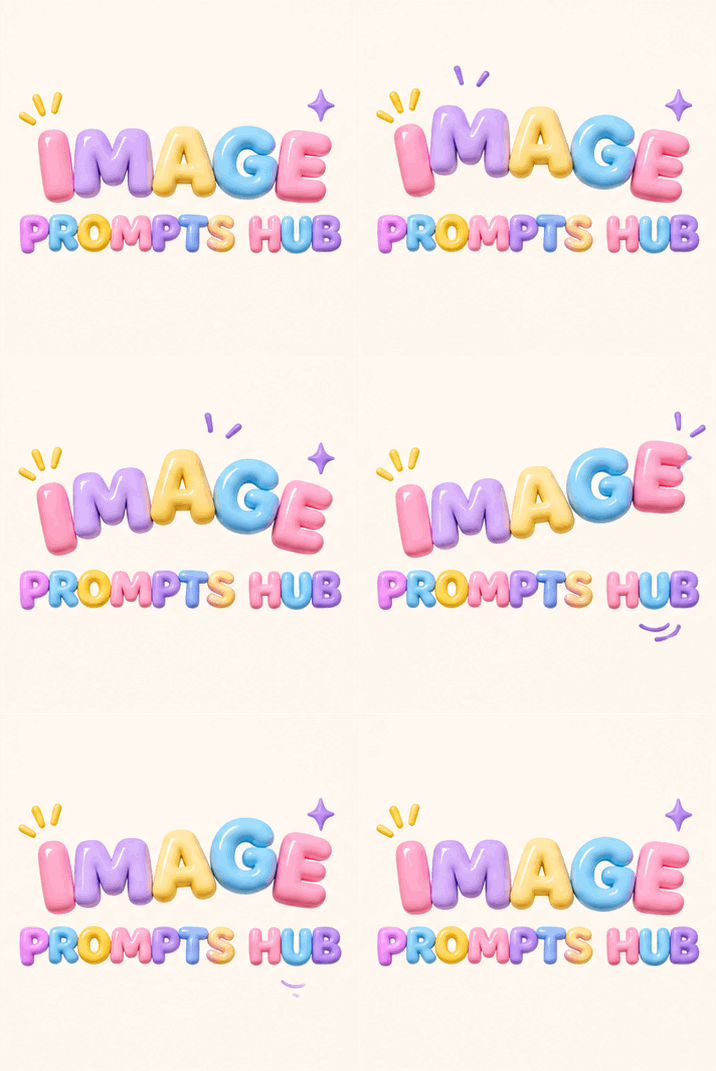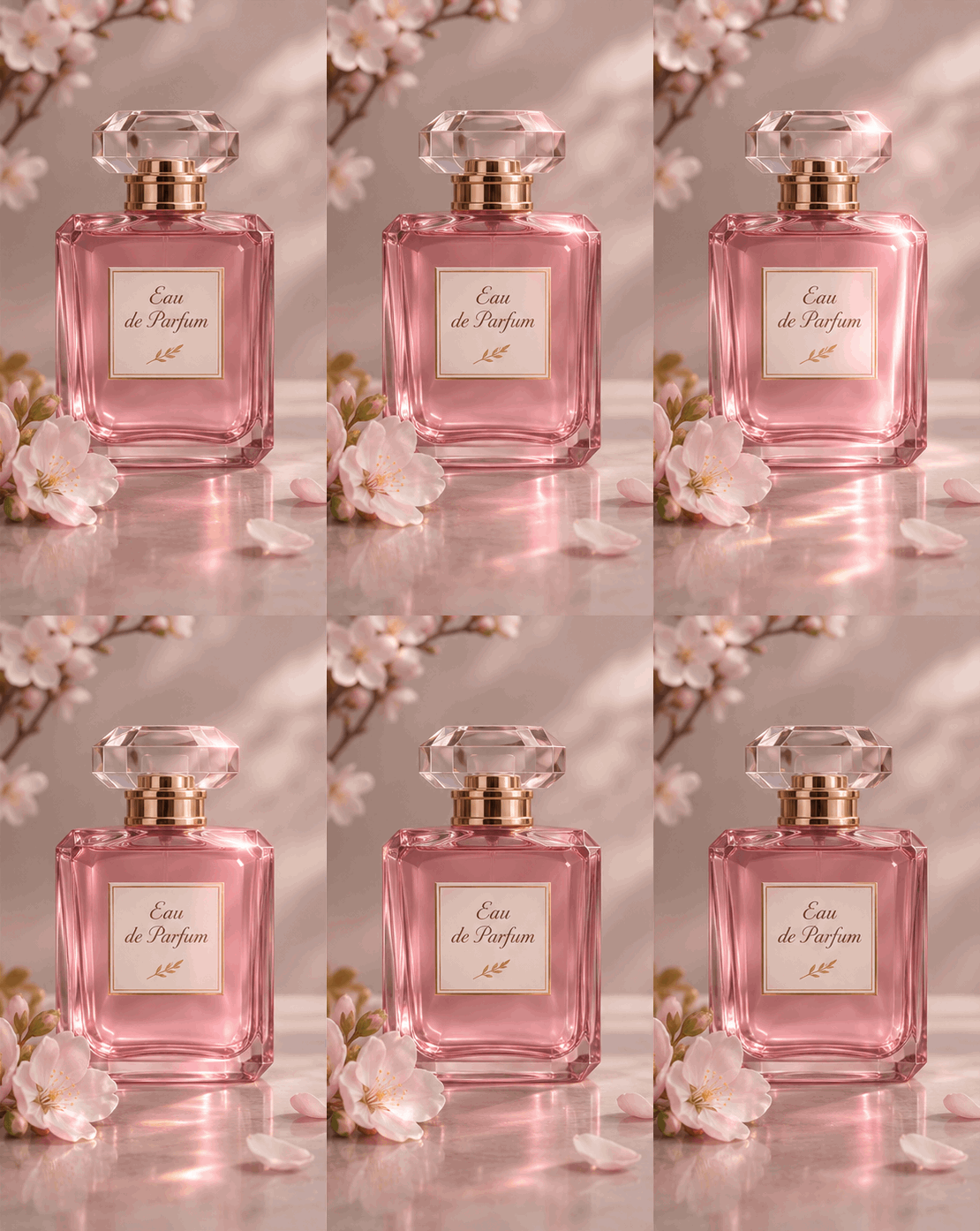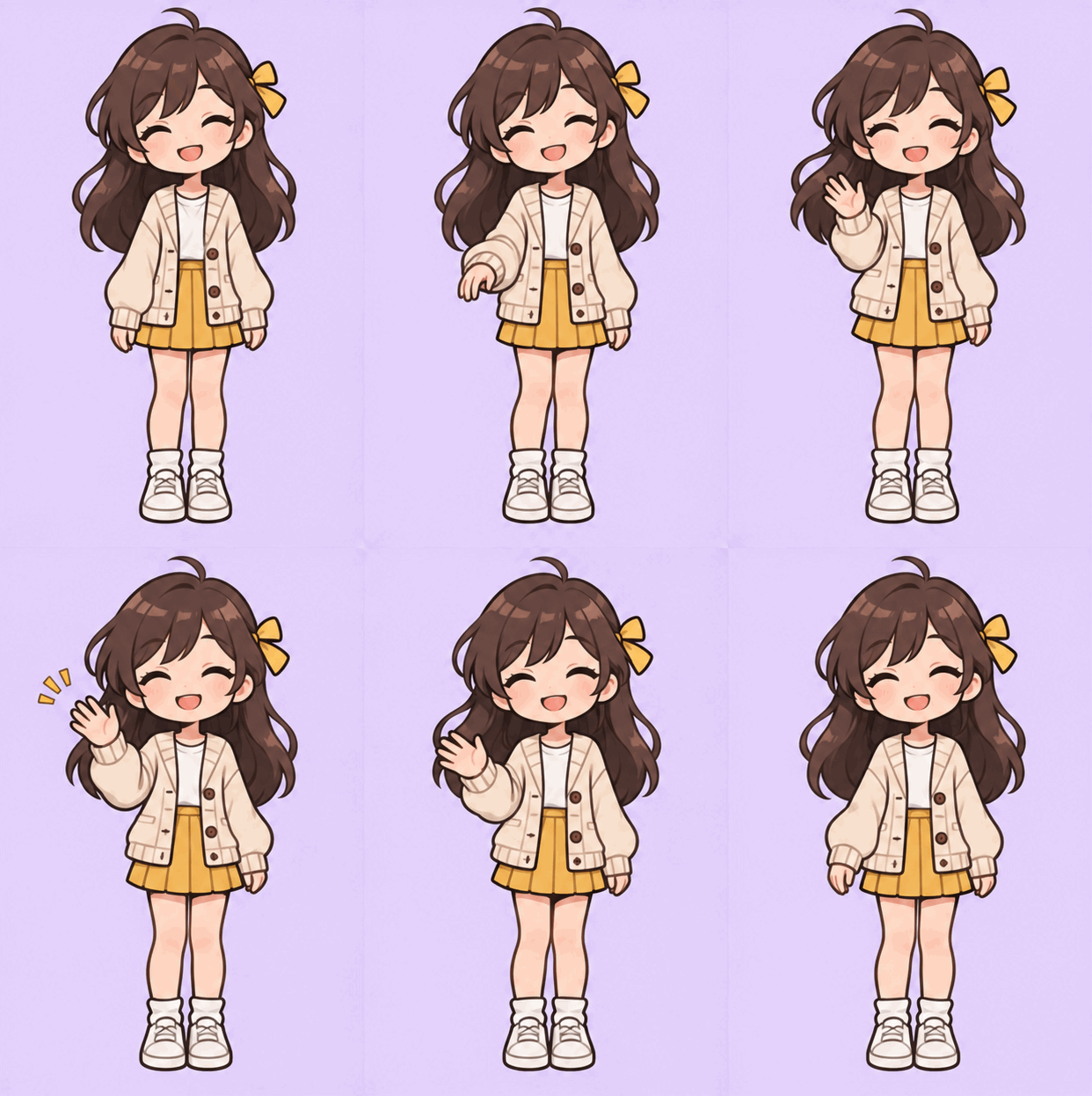
1. Animated Balloon Lettering
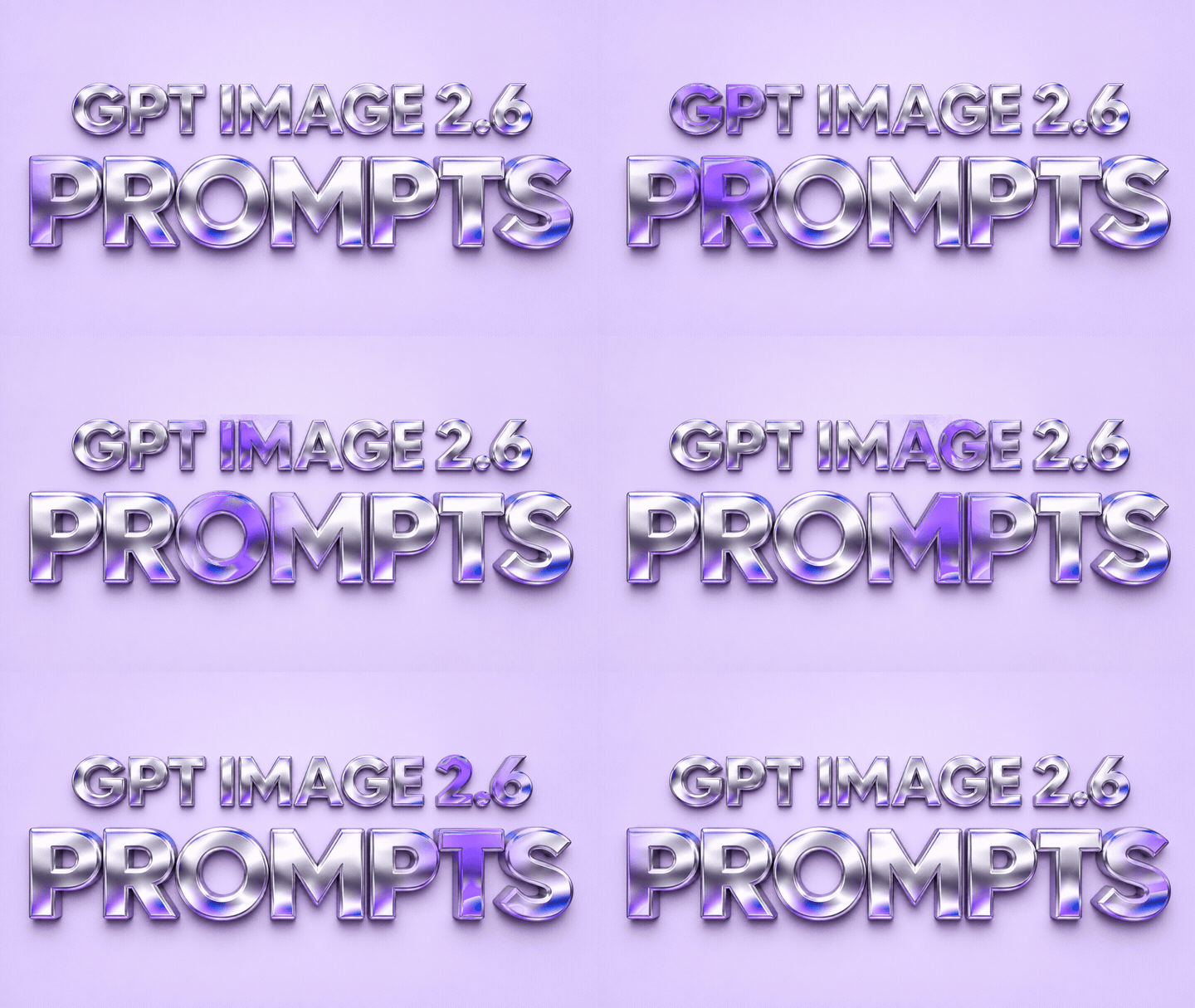
Step 1: Create the lettering
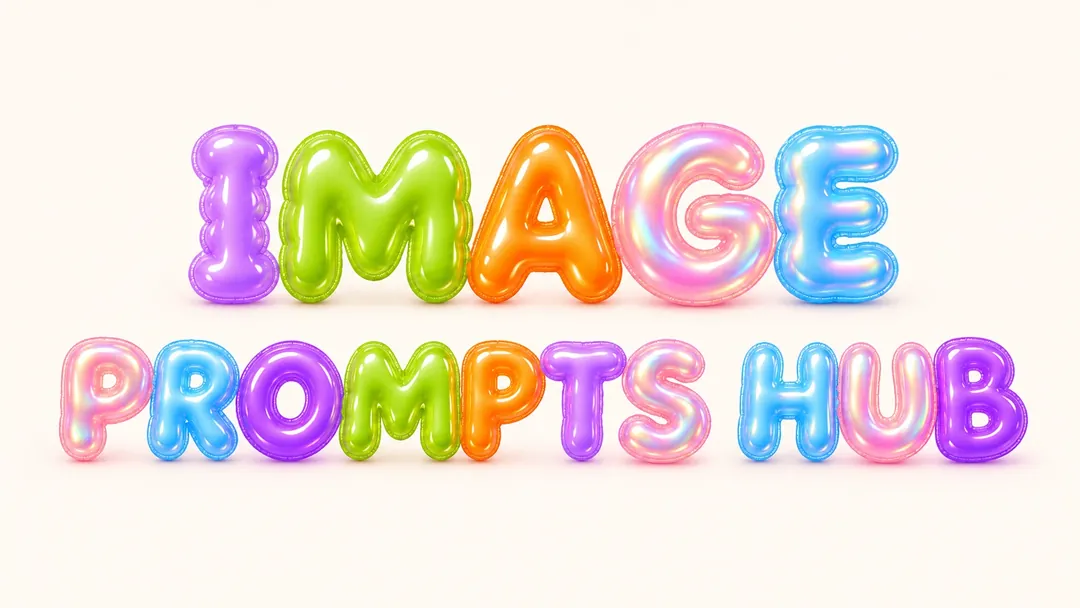
View prompt
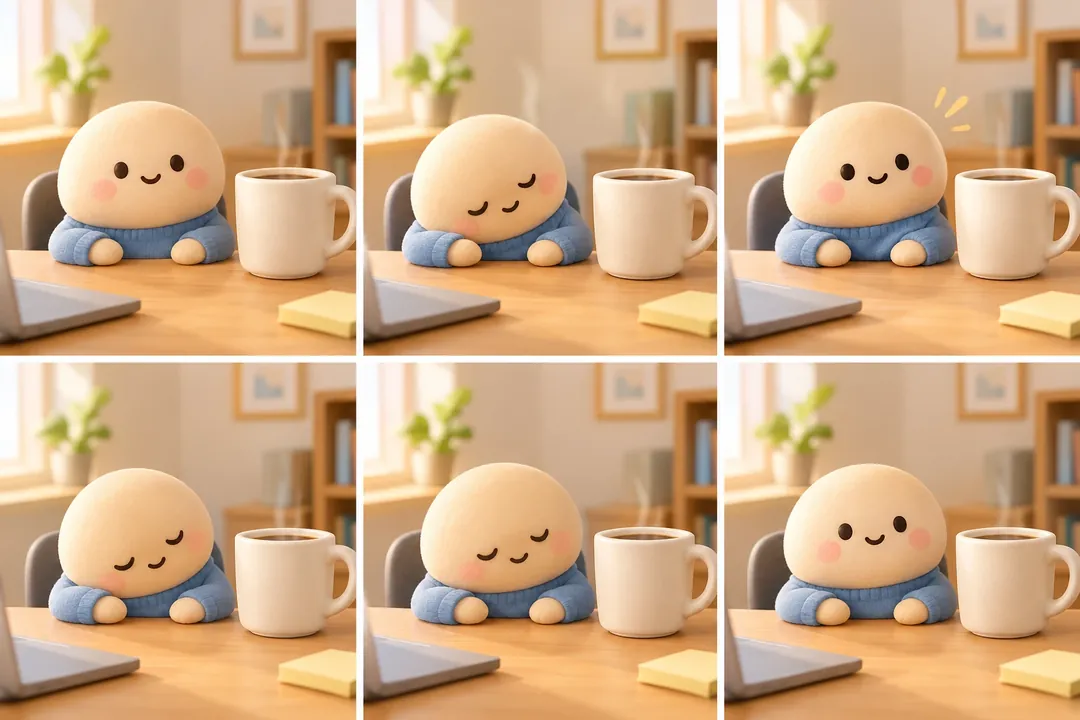
Step 2: Animate it

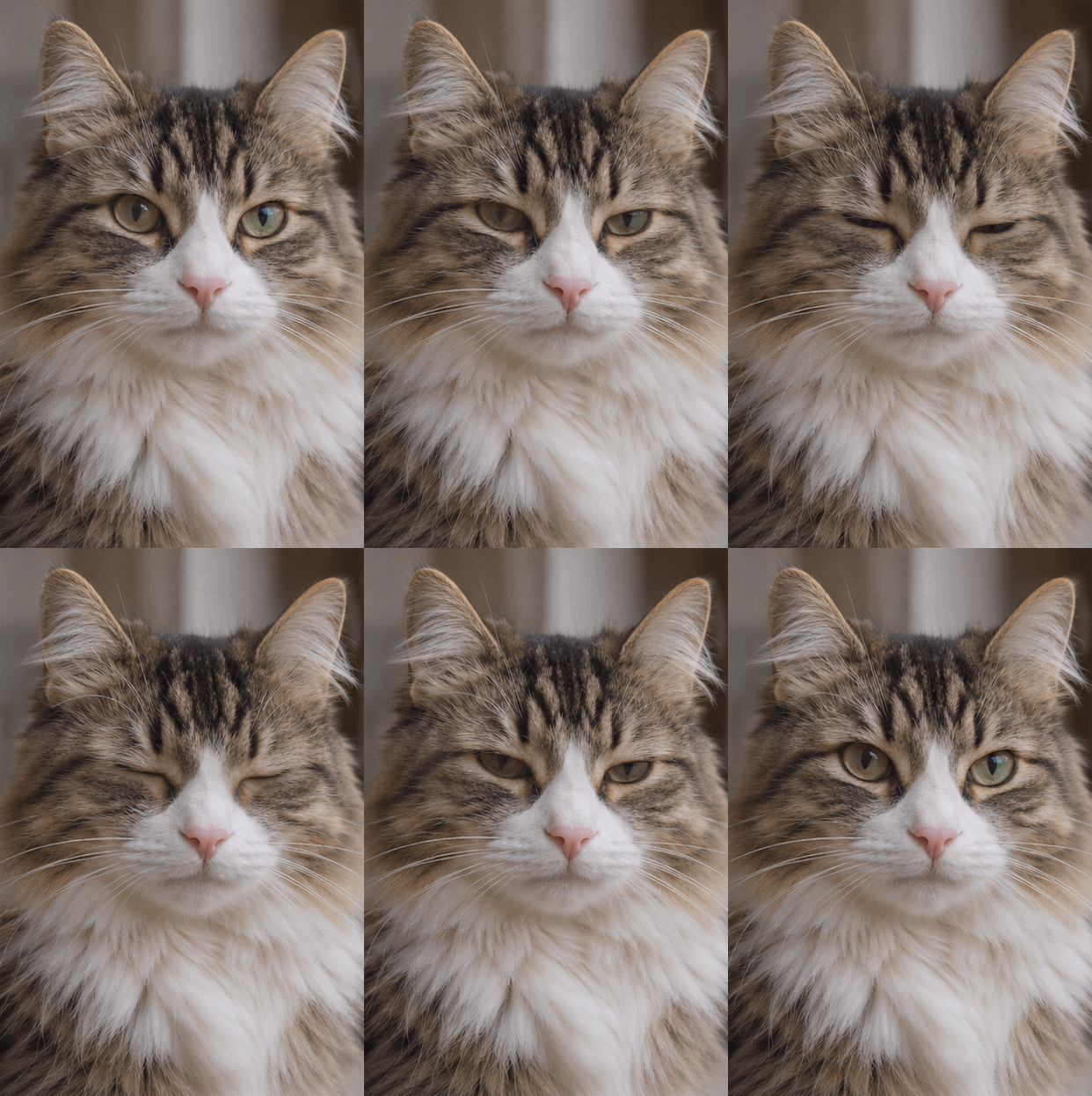
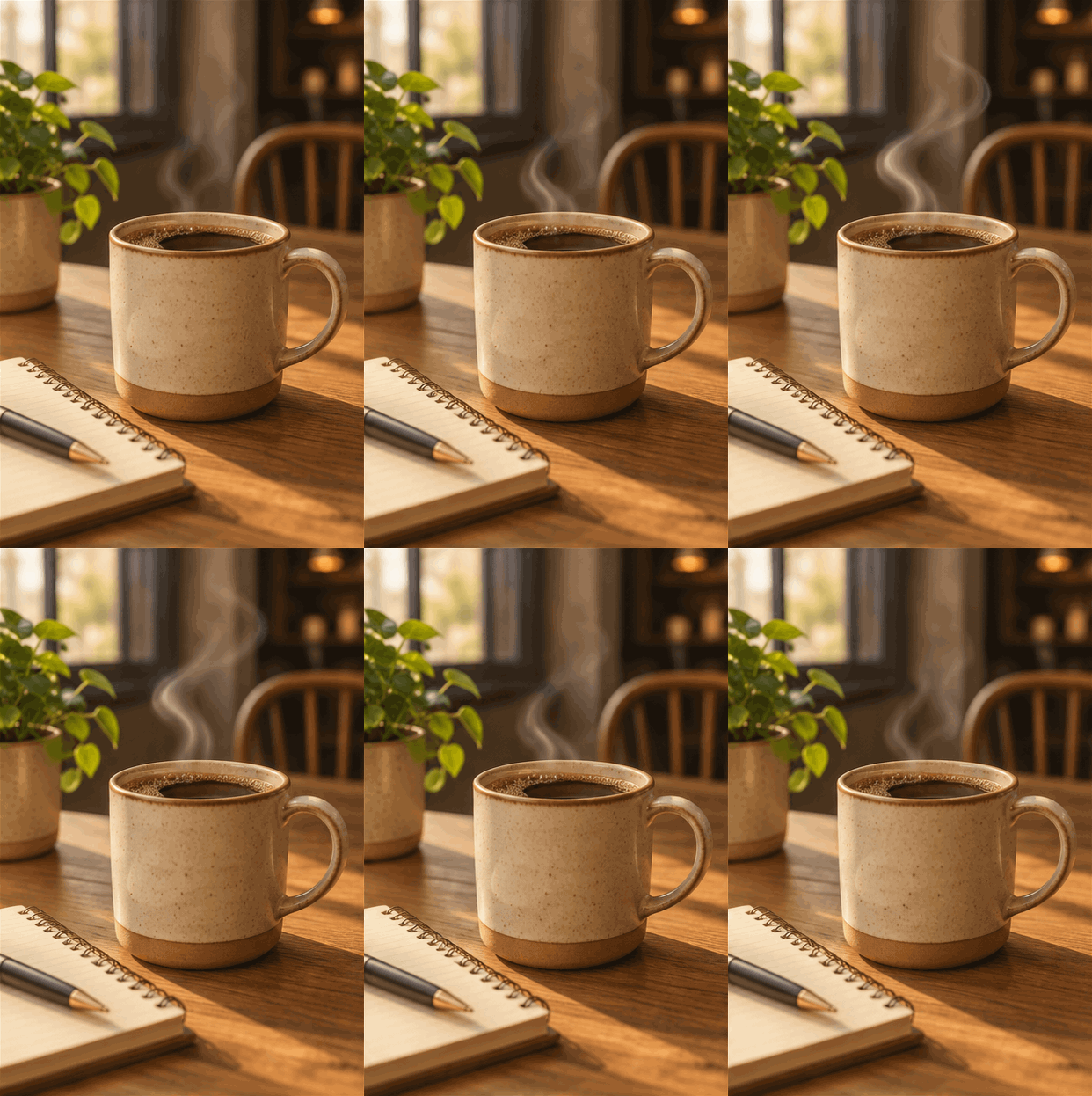
Turn your words into bouncing balloon letters. Make a cat blink, a candle flicker, or coffee steam rise. These 20 GPT Image 2.6 prompts lead with looping GIFs and give you a clear place to start.
Choose an idea and copy the full prompt into ChatGPT. If it asks for a photo, attach your image first. There are no bracketed fields to fill in.

Start with a short action and a fixed camera. Small movements give you fewer details to coordinate across a loop.
Make it yours: Change the character, the colors, or the one action that moves. Keep the camera fixed and the ending pose the same as the start.
Step 1: Create the lettering

Step 2: Animate it


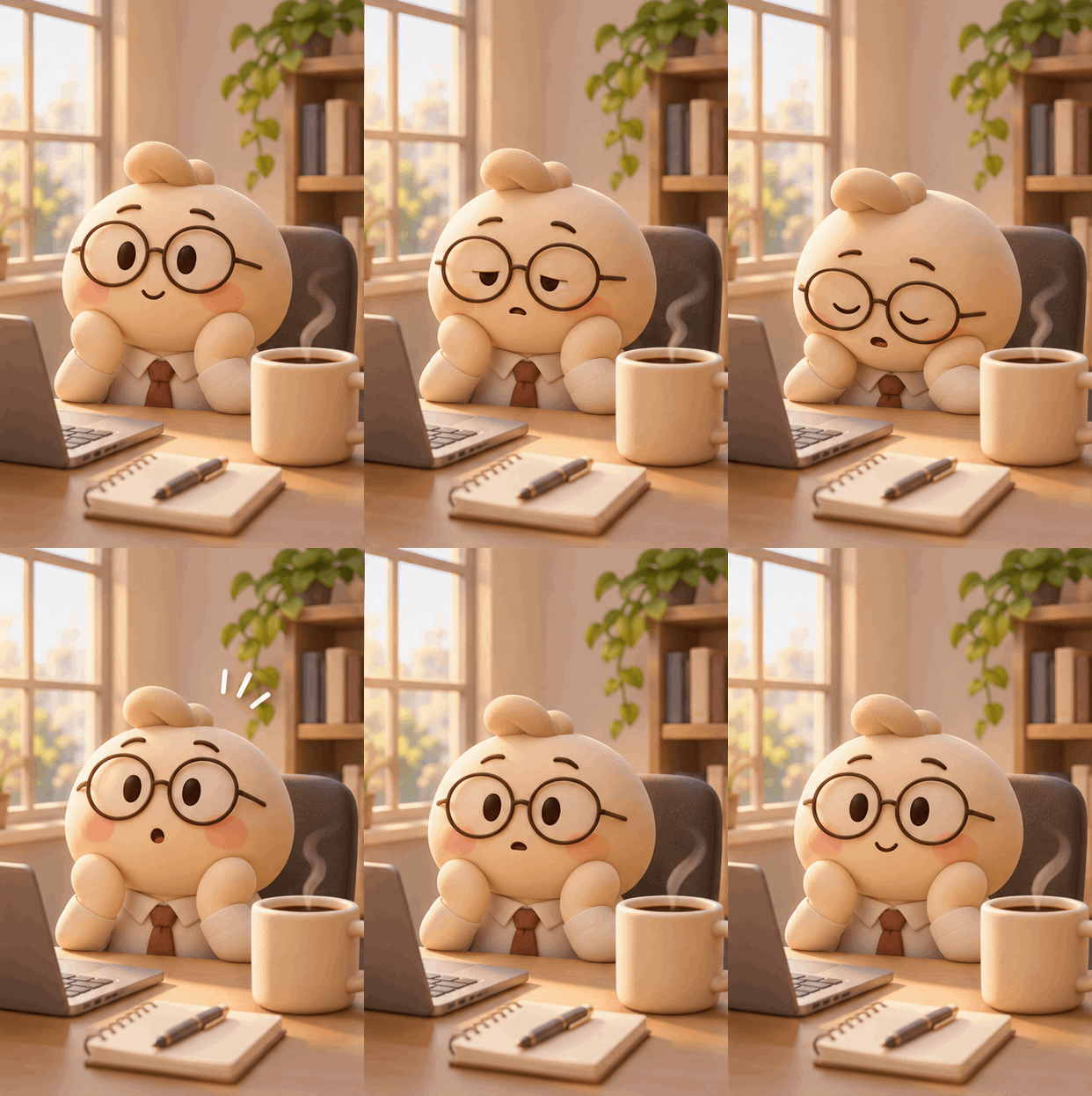
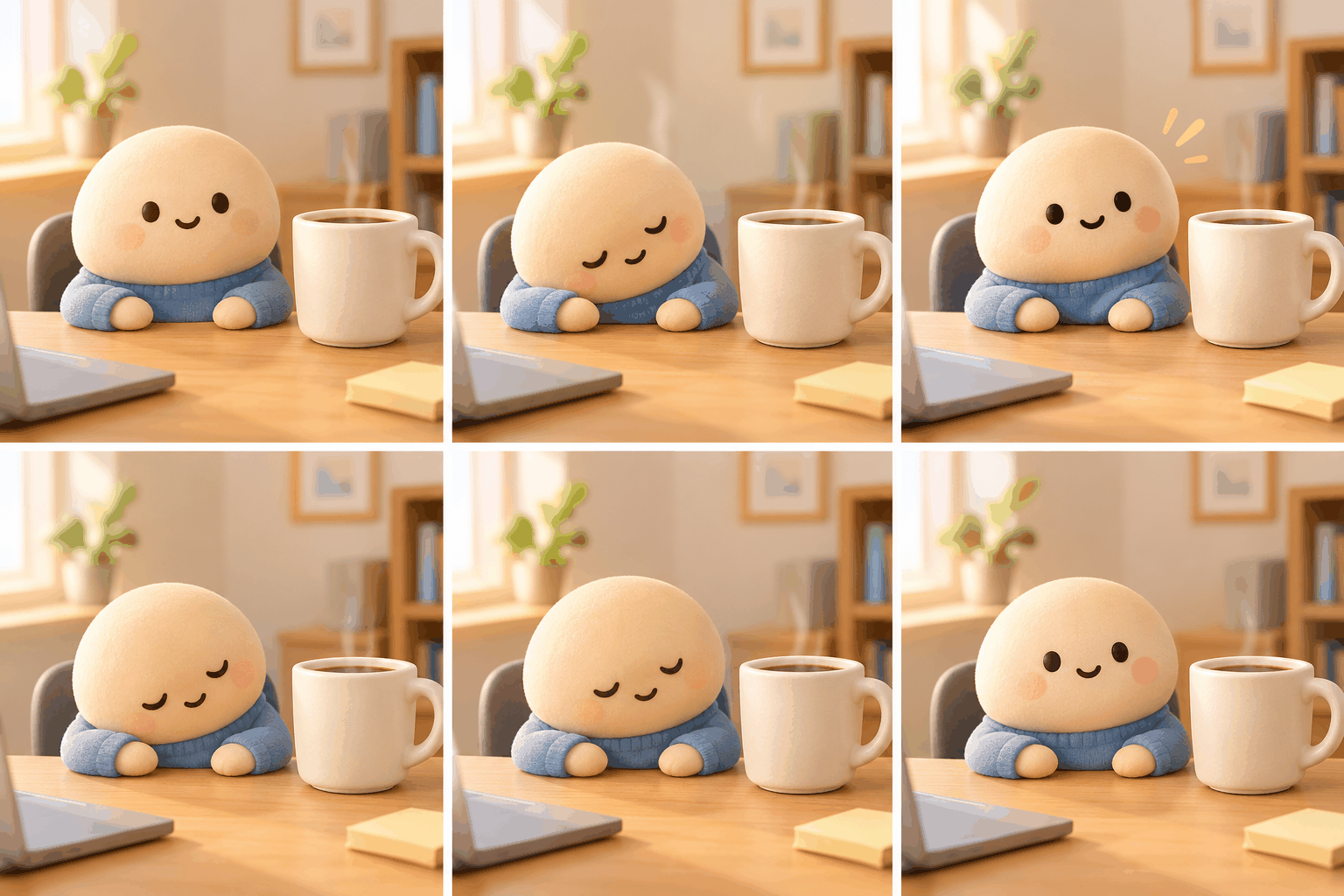
Step 1: Create the storyboard

Step 2: Turn it into a GIF

Send one of these in the same conversation. They are suggested wording, not tested fixes.
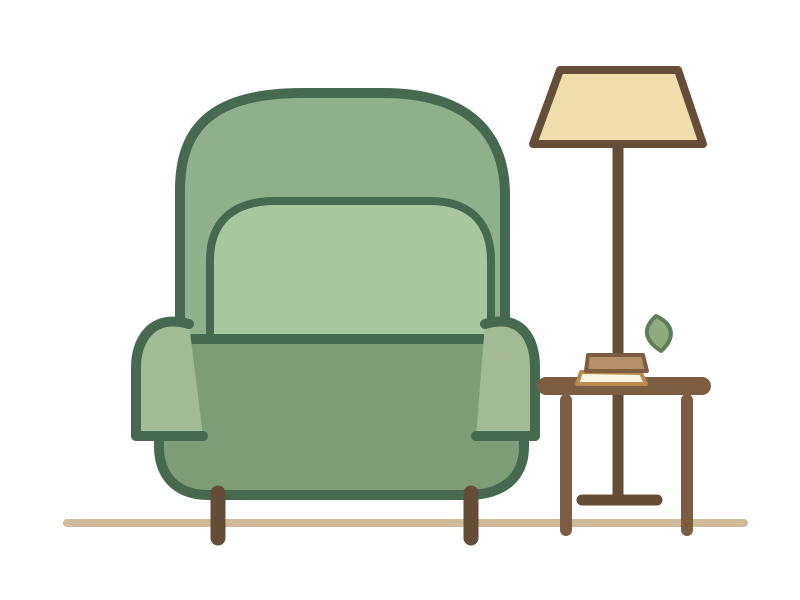
Name the shapes, colors, and intended use. Ask for an SVG file explicitly so you can check the output format. OpenAI lists SVG exports under its API features, so if ChatGPT gives you only a PNG preview, you do not have a vector file.
Make it yours: Swap the object, the colors, or the stroke style. Keep the rule about vector shapes only.

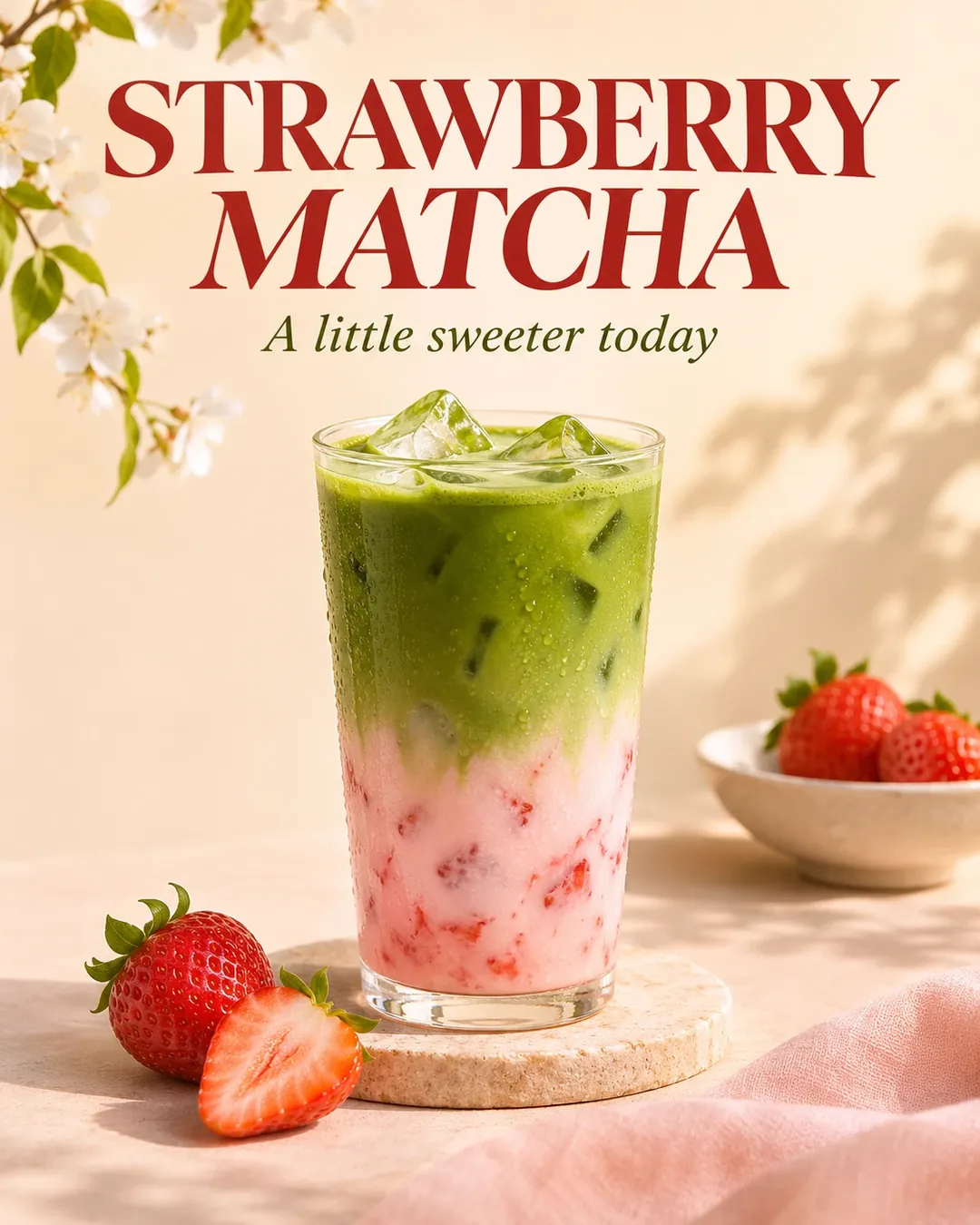
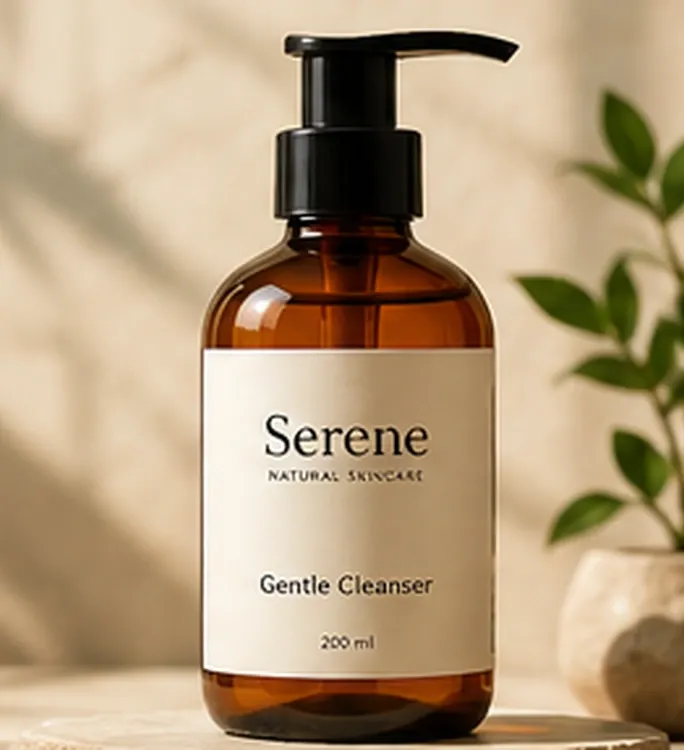
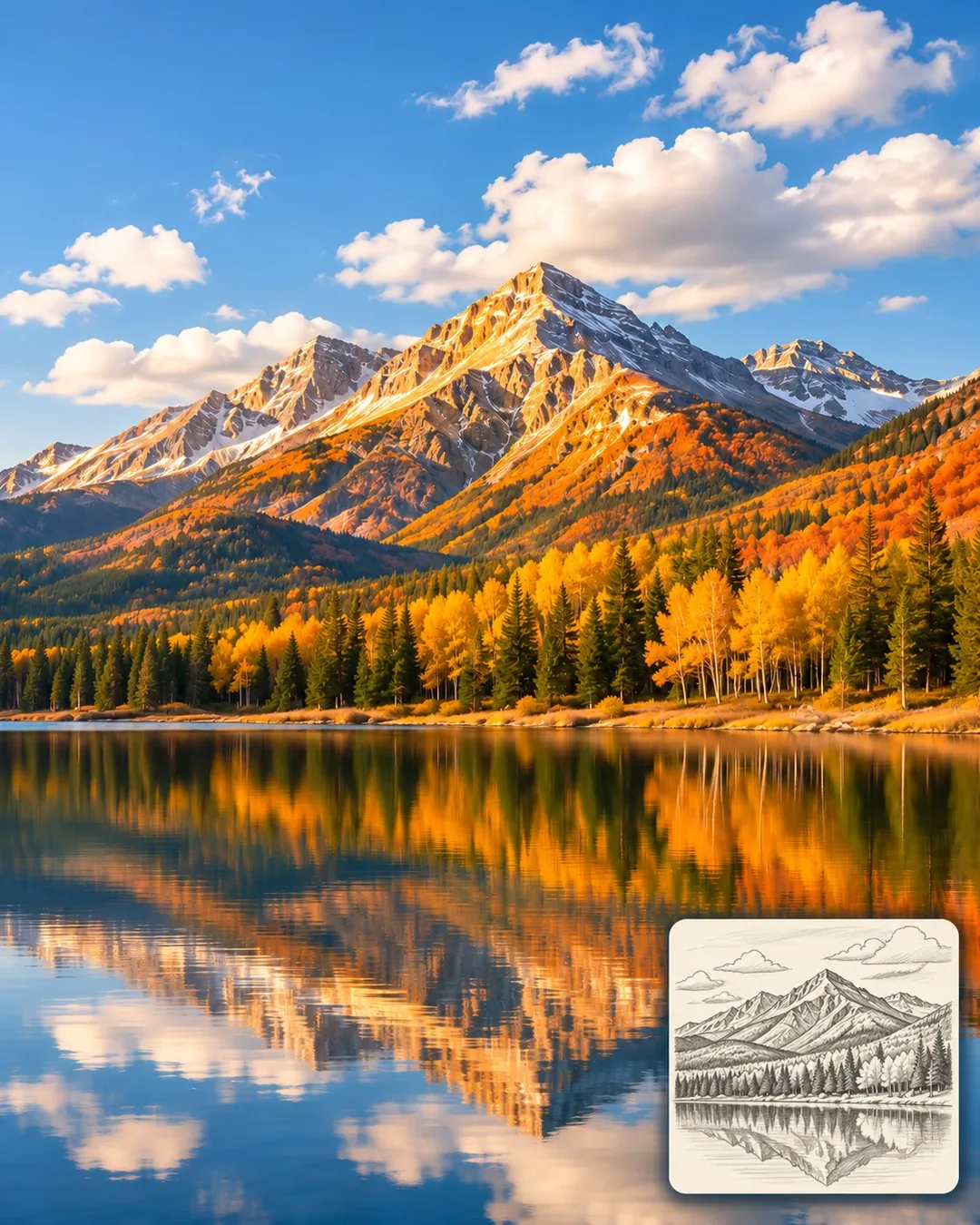
Give the model exact wording for posters. For product photos, separate the scene you want to change from the product details you need to keep. For a sketch, name what should stay in place.
Make it yours: Change the headline, the surface, or the light. Keep the lines that protect exact wording, product details, and layout.


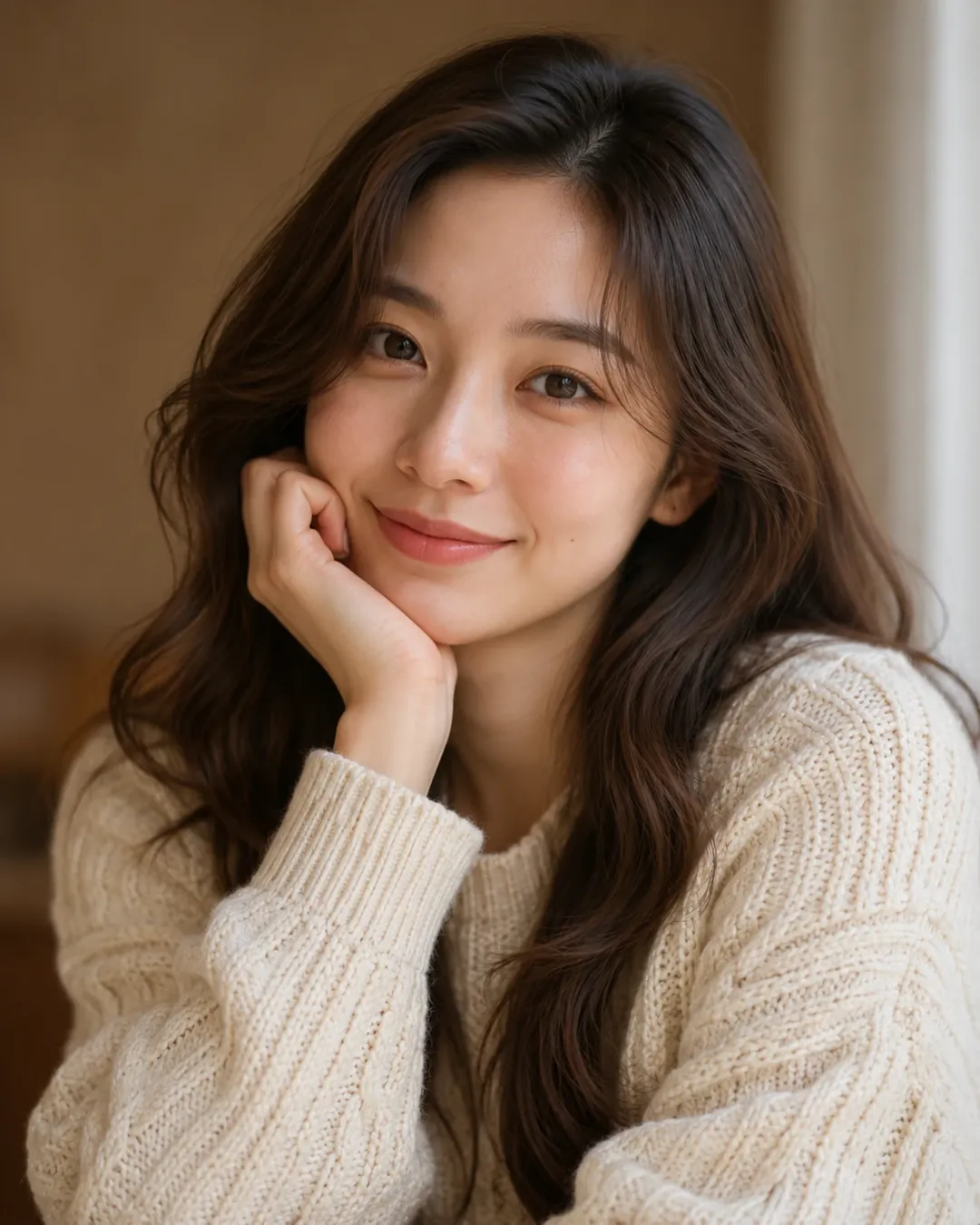
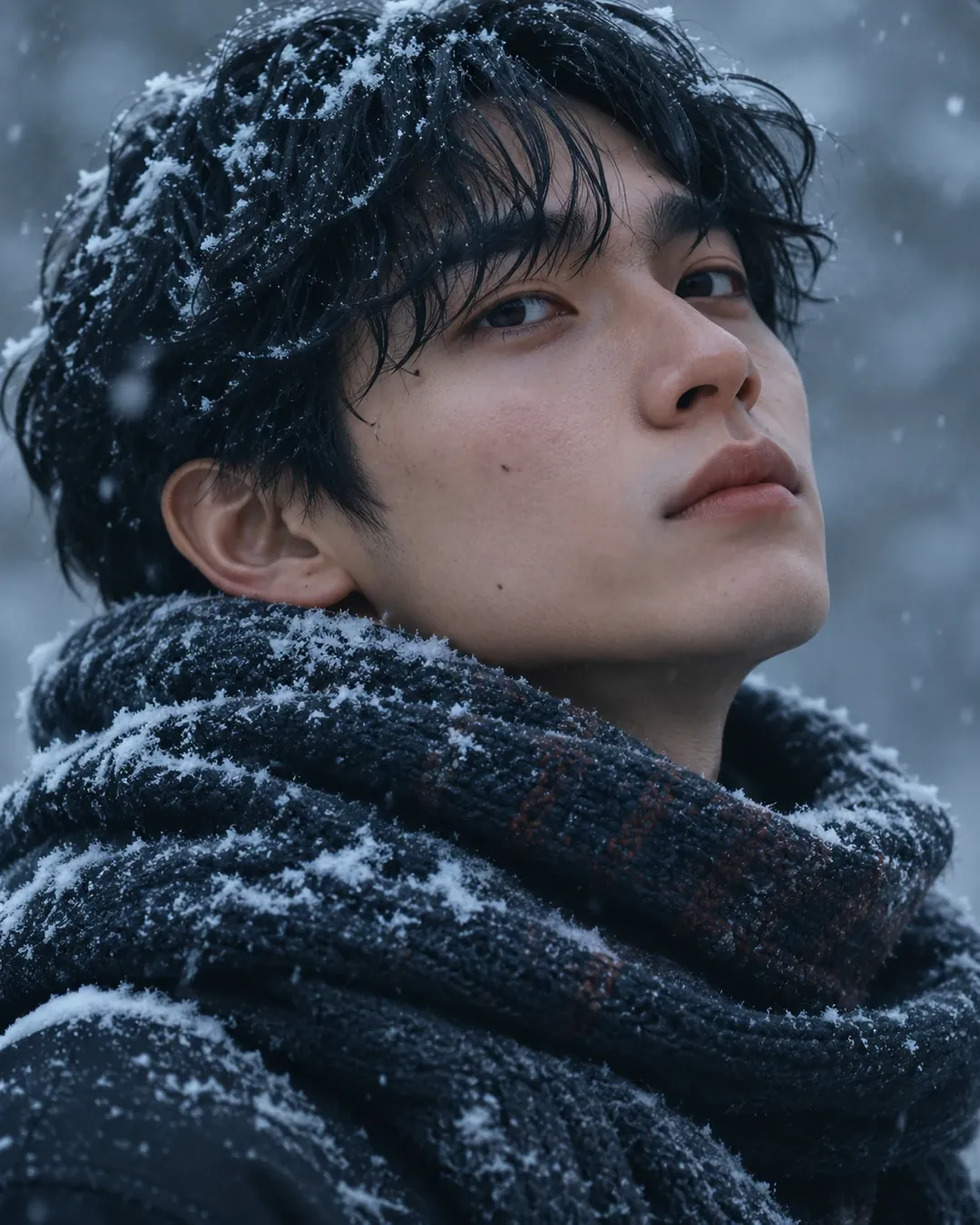
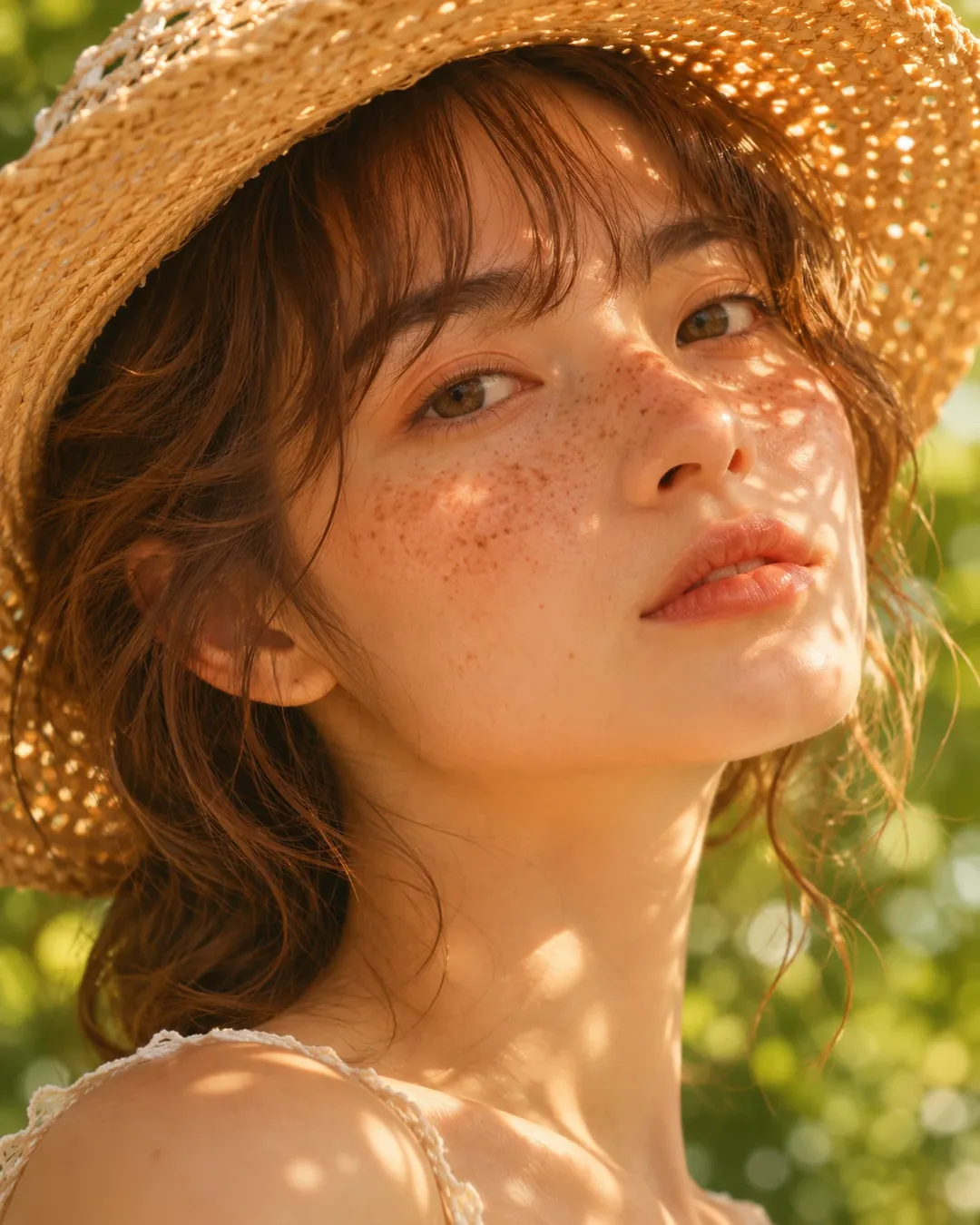
Upload a clear photo and describe the setting, framing, and light. If a detail matters to you, include it in the prompt.
Make it yours: Change the outfit, the setting, or the light. Keep the line that preserves facial features.


For more camera styles and settings, explore our AI photoshoot prompts. You can also find more couple photo ideas and Christmas photo prompts.
OpenAI's Images 2.6 release adds GIF creation and SVG exports, alongside faster image generation and improved consistency across changes. Its API offers two models: Flare and Sunburst. Flare focuses on speed and layout, while Sunburst supports more detailed work and stronger consistency at medium or high quality.
For prompt writing, start with a clear subject and one main goal. For a GIF, describe what moves and how the loop returns to its starting point. When changing a photo, name the details you want to preserve.
Keep working in the same conversation so your earlier instructions remain available. Refer to the original uploaded image when a face, outfit, or product starts to drift.
Clear instructions help you express the goal, but you still need to inspect each result. If several details change at once, return to the original and make a smaller request.
No bracketed fields need replacing. You can copy each prompt as written. Attach a photo when the card requests one. You can also change the colors, setting, or action if you want a different result.
Yes, these examples include instructions for an attached portrait, product image, or sketch. Use images you have permission to use. A clear reference makes it easier to show which details you want preserved.
Check whether the result is an actual animated file or a static preview. Ask explicitly for a downloadable looping GIF. A sprite sheet contains separate animation frames in one still image; those frames need to be assembled before it becomes a moving GIF.
Download the result and check its file type. A PNG preview is not an SVG. An SVG may also contain embedded raster images, so inspect the file if you need fully editable vector shapes.
These prompts request consistency, but results can still vary. Compare each output with your original. If an important feature changes, identify it in your next message or restart from the original reference.
This page focuses on GPT Image 2.6. Some still-image prompts may also be useful elsewhere, but GIF, SVG, and reference-image support differ between tools.